Devops mode - first steps using puppet to automate environment configuration and installation

So it has been some time since I was at the DevoxxFR 2 years ago and had the chance to assist a few presentations regarding this "obscure movement" called DevOps and even tough I'm always interested in new stuff to play around with, coming out of the conference my feeling was "meh, I'll try it out sometime later"... and I never did...

But recently I got a task assigned : "install and configure a development and integration server"

The requirements were the following :

  • Java JDK7
  • Apache MAVEN
  • Apache ANT
  • GIT
  • Subversion (SVN)
  • Jenkins with the following plugins :
    1. Git plugin
    2. Apache MAVEN plugin
    3. Apache ANT plugin
  • Jenkins should run on a custom port namely port 9999

Now I've done this several times and there's nothing really complicated about it. But usually when I do something more than a few times I try to find a way to automate things (apparently we developers are lazy by nature)

As I'm no sysadmin or Linux expert and installing and configuring these tools may be slightly different from one Linux distribution to another, I was looking for an abstraction layer that will handle all these specifics for me.

It has been some time now that I've been hearing about DevOps and tools such as Puppet or Chef but never had the chance to use them.

So this time it was the perfect occasion for a Hello world in the DevOps universe, since this was a fairly small and simple configuration

After Googling a bit I decided to use Puppet instead of Chef this is a personal preference since I find it's JSON syntax easier to read, plus somewhere I read that there were more Puppet Forge modules than Chef recipes (these are pre-configured "plugins" for easier install) out there, but once again this criteria may depend on what you are attempting to install

After following the getting started tutorial available here I must say I was surprised on how easy some things can be done (granted this is a pretty basic tutorial, but we must begin somewhere) I encourage you to read it before checking the rest of the post.

There are 2 puppet versions the Free and the Enterprise version as well as a client-server or standalone approach

With the enterprise version you get a few nice things like a GUI console, a repository where you can manage your scripts, but I prefer the self-contained standalone approach and this is what I will be showing here.

Please note that this blog ticket is not meant to be an introduction to Puppet nor a fully configured production integration server but rather a simple use case based on a personal experience to get things started in the DevOps universe.

Below are the steps that I followed to achieve the task that was given to me :

1. Install Puppet

rpm -ivh http://yum.puppetlabs.com/el/6/products/i386/puppetlabs-release-6-7.noarch.rpm
yum install puppet

This step is distribution specific (I'm using CentOS)if you are not go check the install instructions for your Linux distribution

2. Install Puppet modules

2.1 Java

 puppet module install puppetlabs/java

2.2 Maven

puppet module install maestrodev/maven

2.3 Ant

 puppet module install maestrodev/ant

2.4 Git

 puppet module install puppetlabs/git

2.5 SVN

puppet module install maestrodev/svn

2.5 Jenkins

puppet module install rtyler/jenkins

3. Write your puppet script

include java
include maven
include ant
include git
include svn
include jenkins
jenkins::plugin{ "git" : ;}
jenkins::plugin{"ant": ;}

file_line{'jenkins_port':
        path => '/etc/sysconfig/jenkins',
        line => 'JENKINS_PORT="9999"',
        match => '^JENKINS_PORT=.*$',
        ensure => present
}

These pretty simple puppet script will install the different tools by including each one of the plugins we previously installed and in the end it will change the default Jenkins to the one required by using a puppet function file_line to manipulate a file and replace a line that matches the regular expression

So there you go I had some fun playing a bit with Puppet and will surely use it again in a similar situation..

Intellij change default encoding for properties and message bundle files to utf-8

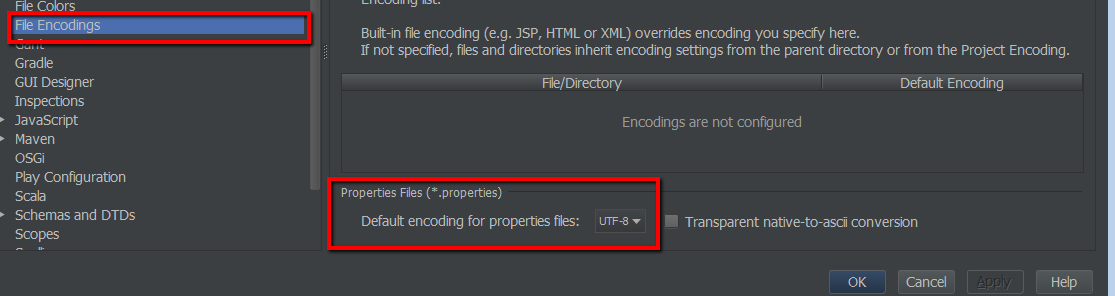
By default IntelliJ IDEA encodes Properties and Message bundle files using the System's default encoding (e.g. ISO-8859-1)

In my experience this is problematic since most frameworks out there use UTF-8 and most of the time you work in multi-platform environments.

If you are not careful and start writing say your i18n files with the default setting you'll be in hell when you realize that you have to save your files in UTF-8 for your favorite framework all your Properties files will probably become corrupt during the file-encoding conversion process.

This setting can be change either on the project level (this will affect only the current project) or on the IDE level (this will affect all new projects)

To change this setting on the IDE level just follow these easy steps :

File --> Other Settings --> Default Settings --> File Encodings 
Change the value of Default encoding for properties file to UTF-8 (or another one of your choice)
Now the default encoding for all your Properties and Message bundle files in every new project will be set to the one of your choice

Intellij scala and SBT dependencies - enhancing the development experience

I'm the happy owner of an Intellij Idea licence which I love, and as stated on a recent article I started learning Scala not long ago and I'm having some trouble to feel the SBT love

While playing a bit with Scala/SBT and IntelliJ I realized that the support for it is not great there are a few plugins bundled such as the SBT executor which adds some functionality, but no syntax highlighting for the .sbt files and more importantly no dependency management inside the IDE which for me is a deal breaker (Albeit since I'm pretty new to the Scala world I might be doing it wrong...)

Luckily a few day ago I found this sbt plugin nightly builds which is a new IntelliJ plugin that will add some sugar to your Scala/SBT development such as dependency management.

You will find all the installation instructions in the link above as well as information on the plugin features

Now as stated on the website this plugin is still Alpha so there are still some rough edges and quircks. I for example had the

Error occurred during initialization of VM
Could not reserve enough space for object heap
Error: Could not create the Java Virtual Machine.
Error: A fatal exception has occurred. Program will exit.


Consult IDE log for more details (Help | Show Log)

Which can easily be solved by following the instructions over at Intellij's support website

Maven build number, versioning your projects builds automatically

By default all maven projects have a version number that you increase upon releases whether it's a minor or major release.

When you are in a scenario in which you continuously deliver application (for example on a staging server) it's probably a good idea to have some unique build identifier so as to know the exact version that is deployed on the server

Luckily the guys over at codehaus have an app plugin just for that .

I'm talking about the buildnumber-maven-plugin

This plugins will generate a build identifier each time you compile your maven project and make this identifier available through a maven variable ${buildNumber}

The plugin can generate build numbers in 3 ways :

  • SCM (my personal favorite)
  • Sequential build number
  • Timestamp

Personally I prefer the SCM approach since it's coupled with your commits, and I will here I will be showing how to do that

First you will have to configure the maven scm plugin with your details, otherwise you'll end up with error messages like :

 Failed to execute goal org.codehaus.mojo:buildnumber-maven-plugin:1.2:create (default) on project simple-webapp: Execution default of goal org.codehaus.mojo:buildnumber-maven-plugin:1.2:create failed: The scm url cannot be null. -> [Help 1]


    com.ufasoli.tutorial
    swagger-spring-mvc
    1.0-SNAPSHOT
     
     
           scm:git:https://github.com/ufasoli/spring-mvc-swagger-tutorial.git
           https://github.com/ufasoli/spring-mvc-swagger-tutorial.git
     

 ...

Here I'm using a github repository as SCM

Once your SCM details are set you can configure the build number plugin :


   ...
     
         org.codehaus.mojo
         buildnumber-maven-plugin
         1.2
         
           
              validate
              
                create


            false
            false
            5


Here I'm configuring the plugin with 3 worth noting options

  • doCheck : Check for locally modified files. If true build will fail if local modifications have not been commited
  • doUpdate : Update the local copy of your repo. If true the plugin will update your local files with the remote modifications before building
  • shortRevisionLength : shortens the git revision to the number of characters specified in the tag (5 in our case)

Once everything is configured you will be able to access the ${buildNumber} variable in your pom (even though your IDE might complain that the variable cannot be resolved don't worry it will be there when you package your project)


${project.artifactId}${project.version}_${buildNumber}


Maven filtering test resources

When running tests in maven it's common usage to have configuration files that should be filtered.

When filtering "normal" resources the syntax is the following :


...


        ${project.basedir}/src/main/resources
        true


...

Whereas when filtering test resources the syntax is following :


 ...


              ${project.basedir}/src/test/resources
              true
          
      
  ...
  

Otherwise your test resources will not be filtered

Scala sbt and np plugin type error in expression

I started learning scala a month or so ago, and I must say SBT is a bit of a pain to use to me ( Maven I miss you!!).

I know you can use Maven to build your scala projects instead of SBT but I was trying to do it the "scala" way

While trying to get started with a simple Hello World and I was having some issues while getting started using SBT

When using SBT apparently it's a defacto standard to use the sbt np plugin to create a scala project skeleton. But after following the instructions on how to set-up SBT and the NP plugin I stumbled upon the following error when running sbt np:

/home/ufasoli/.sbt/0.13/_settings.sbt:1: error: not found: value npSettings
seq(npSettings:_*)
    ^
[error] Type error in expression

From what I could read there were changes introduced in the sbt version 0.13 that changed the way plugins are configured. SBT's global configuration is now versioned which, from my understading means than instead of putting your global config files under ${user_home}/.sbt/settings.sbt you will need to put it under ${user_home}/.sbt/${sbt_version}settings.sbt (0.13 in our case)


/home/ufasoli/.sbt/0.13/settings.sbt

seq(npSettings:_*)

You will then need to put your np plugin configuration under the plugins folder in my case /home/ufasoli/.sbt/0.13/plugins/np.sbt

 addSbtPlugin("me.lessis" % "np" % "0.2.0")

mkdir hello-world
sbt np

This sample project can be found at my github account here

Just clone and execute sbt run on the command prompt to see the Hello World message

Debugging a maven failsaife selenium build in intellij

Recently I had to debug a set of Selenium tests using the failsafe plugin and the embedded tomcat7 plugin using Intellij Idea

Usually you can just click on IDE's the debug button and Intellij will take care to launch the build and attach a debugger to the appropriate debug port:

However this time it wasn't working I had 2 issues with my build :

  1. My breakpoints where completely ignored
  2. The maven build just kept waiting without exiting the project even once the integration tests where finished

So I looked into the possible XML configuration tags for the failsafe plugin and thought that the <debugForkedProcess>true</debugForkedProcess> would be my salvation however I was wrong...

So what's happening here ?

By default, maven runs your tests in a separate ("forked") process. So when you set this property to true, the tests will automatically pause and await a remote debugger on port 5005

However this was not going happen since when you click on the IDE's debug button Intellij will execute a java debugging command similar to this :

java -agentlib:jdwp=transport=dt_socket,address=127.0.0.1:63093,suspend=y,server=n -Dmaven.home=C:\dev\bin\maven -Dclassworlds.conf=C:\dev\bin\maven\bin\m2.conf -Dfile.encoding=UTF-8 -classpath "C:\dev\bin\maven\boot\plexus-classworlds-2.4.2.jar;C:\dev\ide\intellij\lib\idea_rt.jar" org.codehaus.classworlds.Launcher --errors --fail-fast --strict-checksums clean verify -P selenium
Connected to the target VM, address: '127.0.0.1:63093', transport: 'socket'

Then the failsafe process will start and pause the tests waiting for a debbuger to attach to the 5005


-------------------------------------------------------
 T E S T S
-------------------------------------------------------
Listening for transport dt_socket at address: 5005

But as mentioned earlier this will not happen, because Intellij is listening on another port

Upon reading the plugin documentation over here I realized that you can change all of these configuration properties. However I kept reading the plugin documentation and found another promising configuration option <forkMode>true</forkMode>

According to the documentation the forkMode is an option to specify the forking mode. Can be "never", "once" or "always". "none" and "pertest" are also accepted for backwards compatibility. "always" forks for each test-class.

Since in our case we need to attach a debugger to a single thread in order to have our debugger to be called when hitting a break-point we will set this option to never

Now hit again the debug button in your IDE and normally Intellij should be summoned when your break-point is reached

Below is a sample maven configuration excerpt with the configuration for the failsafe plugin


...
  
    org.apache.maven.plugins
    maven-failsafe-plugin
    2.9
    
      
         integration-test
            
                integration-test


        verify
        
           verify


        never
     

...

as usual the full code for this application can be found over at my github account

the tests get executed when running the following maven goal :

mvn clean verify -Pselenium

a few tips for the road :

  • Remember to use the suffix IT on your selenium test classes (e.g: MyTestIT.java) otherwise you will have to configure the surefire plugin to ignore them
  • If like me you're running your selenium tests in a self contained mode (i.e : starting the application server, deploying the app, running the tests, stopping the server) remember to configure your server to fork to another process, otherwise the server running process will be started in a blocking mode

OSX show used ports or listening applications with their PID

On OSX you can display applications listening on a given port using the lsof the commands described below will show listening application...