Spring boot and mongodb with geo-localisation queries 1/3

MongoDB offers a number of indexes and query mechanisms to handle geospatial information, below are some of the features offered by the database :

  • Surfaces
  • Location Data
  • Query Operations
  • Geospatial indexes
  • .....

More detailed information can be found at their website : MongoDB Geospatial queries

In this 3 part post we will be creating a sample REST API application using Spring Boot, Spring Data and MongoDB to determinate if a given "Interest Point" is within a certain distance of the provided coordinates

1. Setup

Before we start please ensure that you have a running MongoDB instance

So let's get things started, we will be using Gradle as our build tool for this project, if you're not familiar with this build tool you can read the documentation

Below is the build file used to build our project, there is some noise in here that is related to IDE support as well as a few things needed to deploy this application in heroku which can be avoided but I've chosen to leave here for the sake of completion, the most interesting parts for us are the dependencies


buildscript {
 ext {
  springBootVersion = '1.5.2.RELEASE'
 }
 repositories {
  mavenCentral()
 }
 dependencies {
  classpath("org.springframework.boot:spring-boot-gradle-plugin:${springBootVersion}") 
 }
}

apply plugin: 'java'
apply plugin: 'eclipse'
apply plugin: 'spring-boot'


jar {
 baseName = 'spring_mongodb_geospatial_api'
 version = '0.0.1-SNAPSHOT'
}
sourceCompatibility = 1.8
targetCompatibility = 1.8

repositories {
 mavenCentral()
}

task stage {
    dependsOn build
}


task wrapper(type: Wrapper) {
    gradleVersion = '2.6'
}


task copyToLib(type: Copy) {
    into "$buildDir/lib"
    from(configurations.compile)
}

stage.dependsOn(copyToLib)

dependencies {
 compile('org.springframework.boot:spring-boot-starter-data-mongodb') {
  exclude group: 'org.springframework.boot', module: 'spring-boot-starter-logging'
 }
 compile('org.springframework.boot:spring-boot-starter-web') {
  exclude group: 'org.springframework.boot', module: 'spring-boot-starter-logging'
 }
 compile('org.springframework.boot:spring-boot-starter-actuator'){
  exclude group: 'org.springframework.boot', module: 'spring-boot-starter-logging'
 }

 compile('org.springframework.boot:spring-boot-starter-log4j')

 compileOnly ("org.projectlombok:lombok:1.16.14")

 testCompile('org.springframework.boot:spring-boot-starter-test'){
  exclude group: 'org.springframework.boot', module: 'spring-boot-starter-logging'
 }
}


eclipse {
 classpath {
   containers.remove('org.eclipse.jdt.launching.JRE_CONTAINER')
   containers 'org.eclipse.jdt.launching.JRE_CONTAINER/org.eclipse.jdt.internal.debug.ui.launcher.StandardVMType/JavaSE-1.8'
 }
}


Let's configure our spring boot application with the base info for our application to run (default profile, MongoDB info, etc.):

spring:
    application:
        name: spring_mongodb_geospatial_api
    profiles:
      active: dev


---
spring:
  profiles: dev
  data:
    mongodb:
      host: localhost
      port: 27017
      repositories:
        enabled: true

Let's now configure our bootstrap class :


package com.ufasoli.tutorials.mongogeospatial.ws;

import com.fasterxml.jackson.databind.Module;
import org.springframework.boot.SpringApplication;
import org.springframework.boot.autoconfigure.SpringBootApplication;
import org.springframework.context.annotation.Bean;
import org.springframework.context.annotation.Configuration;
import org.springframework.data.mongodb.core.geo.GeoJsonModule;
import org.springframework.scheduling.annotation.EnableAsync;

@SpringBootApplication
@Configuration
@EnableAsync
public class SpringMongoDBGeospatial {

     public static void main(String[] args) {
 SpringApplication.run(SpringMongoDBGeospatial.class, args);
     }

    //Register a custom Serializer/Deserializer for the geospatial information
    @Bean
    public Module registerGeoJsonModule(){
        return new GeoJsonModule();
    }
}

This is a pretty standard spring boot class except for the fact that we are declaring a custom JSON Serializer/Deserializer for handling geospatial information

Finally let's create our data model :

package com.ufasoli.tutorials.mongogeospatial.ws.model;

import lombok.Data;

import java.util.Date;


@Data
public class Updatable {

    private Date createdAt;
    private Date updatedAt;

    private Long updatedTimestamp;


}


package com.ufasoli.tutorials.mongogeospatial.ws.model;

import lombok.Data;
import org.hibernate.validator.constraints.NotBlank;
import org.springframework.data.annotation.Id;
import org.springframework.data.mongodb.core.geo.GeoJsonPoint;
import org.springframework.data.mongodb.core.index.GeoSpatialIndexType;
import org.springframework.data.mongodb.core.index.GeoSpatialIndexed;
import org.springframework.data.mongodb.core.mapping.Document;

import java.io.Serializable;
import java.util.List;


@Document
@Data
public class InterestPoint extends Updatable implements Serializable {

    @Id
    private String uuid;

    @NotBlank
    private String displayName;

    private String displayPhoto;


    private List categories;

    @GeoSpatialIndexed(type = GeoSpatialIndexType.GEO_2DSPHERE)
    private GeoJsonPoint location;


    public InterestPoint() {
    }

    public InterestPoint(String uuid, String displayName) {
        this.uuid = uuid;
        this.displayName = displayName;
    }

    public InterestPoint(String uuid, String displayName, GeoJsonPoint location) {
        this.uuid = uuid;
        this.displayName = displayName;
        this.location = location;
    }


}


package com.ufasoli.tutorials.mongogeospatial.ws.model;

import java.io.Serializable;

/**
 * Created by ufasoli
 */
public enum Category implements Serializable{

    CAFE,
    BAR,
    RESTAURANT,
    MUSEUM,
    BANK,
    METRO_STATION,
    BUS_STATION,
    THEATRE,
    HOTEL
}


And that it's for today, on the next part we will set up the web application and controllers

Spring Data force version and lastmodified date to update on JPA Entity

Spring data has a feature that allows you to track automatically a certain amount of fields through annotations :

  • @CreatedDate : The date on which the entity was created
  • @CreatedBy : The user that created the entity
  • @LastModifiedDate : The date the entity was last modified
  • @LastModifiedBy : The user that modified last the entity
  • @Version : the version of the entity (increased each time the entity is modified and savesd)

Let's say for example we have this simple entity with the appropriate annotations :


@Entity
@EntityListeners(AuditingEntityListener.class)
public class Contact implements Serializable {

    private static final long serialVersionUID = 1L;

    @Id
    @GeneratedValue(strategy = GenerationType.IDENTITY)
    private Long id;

    @Version()
    private Long version = 0L;

    @NotNull
    @CreatedDate
    private Date creationDate;

    @NotNull
    @Size(max = 50)
    @CreatedBy
    private String creationUserLogin;

    @NotNull
    @LastModifiedDate
    private Date modificationDate;

    @NotNull
    @Size(max = 50)
    @LastModifiedBy
    private String modificationUserLogin;

   private String firstName;

   private String lastName;

 //GETTERS - SETTERS and other code
   

}

And we're using the following service class and repository :


@Service
public class ContactServiceImpl implements ContactService{

   @Autowired
   private ContactRepository contactRepository;


  public Contact save(Contact contact){
   
    return contactRepository.save(entity);
  }
}


public interface ContactRepository extends JpaRepository<Contact, Long> {

}

Now whenever you change the value of one of the fields in the entity; the fields marked with @Version, @LastModified and @LastModifiedBy will be updated with new values automatically.

Now recently I had the case where I had to "touch" an entity (like in linux) so that the version will be increased as well as @LastModified and @LastModifiedBy will be updated accordingly even though none of the fields had been updated

Now you cannot update the automatically handled fields manually, but there is a way you can achieve this by using Spring's AuditingHandler; so we could modify our service class as follows :


@Service
public class ContactServiceImpl implements ContactService{

    @Autowired
    private ContactRepository contactRepository;

    @Autowired
    private AuditingHandler auditingHandler;

   
    public Contact save(Contact contact, boolean forceVersionIncrease){
         //force version update even though no values have changed in the entity
         if(forceVersionIncrease){
             auditingHandler.markModified(contact);
         }
   
     return contactRepository.save(entity);
   }
}

And there you go, you should be able now to "touch" your entities and force date and version updates

Use Github as a CDN to store and serve static content (JavaScript, CSS, Images) with rawgit

In this article I will be explaining how to use Github's "raw" feature coupled with rawgit to store and serve static content

Please note I assume you have some basic git knowledge
1.- Creating a Github account

Ok so first things first, in order to do this you need a Github account; so if you don't have one head up to the GitHub website and create one ; go ahead I'll wait :)

2.- Creating a Github repository

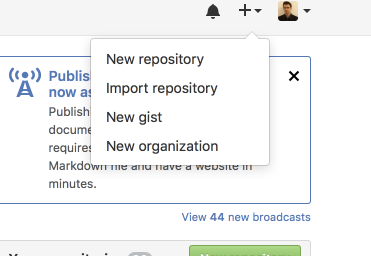
Login to your Git account and create a new repository :

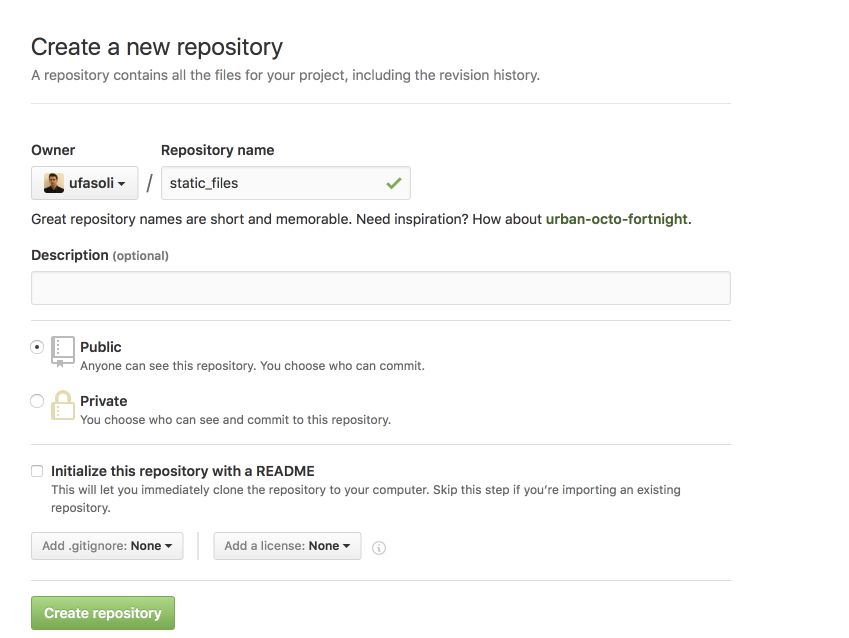
Provide a name for your repo (for example static_files) :

3.- Build repository structure

We will now create a folder structure for our repository in order for us to organise the files, for example :

  • css
  • js
  • img

So now go ahead and clone your git repository from either the command line or with your favorite tool

git clone https://github.com/xxxx/static_files.git

Once the repository is cloned; go ahead and create the 3 folders mentioned above

cd static_files
mkdir css
mkdir js
mkdir img

Ok so Git does not allow you to commit empty folders, so now in order to commit our folder structure we have to add at least 1 file to each one of the folders; at this point either :

  • copy your existing files to their respective folder based on their type (images, javascript, etc.)
  • create your content files in the respective folders (i.e. custom javascript, css etc.)
  • create placeholder files in each of the folders (for example: touch js/.gitkeep ; touch css/.gitkeep; touch img/.gitkeep)
git add *
git commit -a -m "initial commit"
git push
4.- Obtain files URLs and serve them

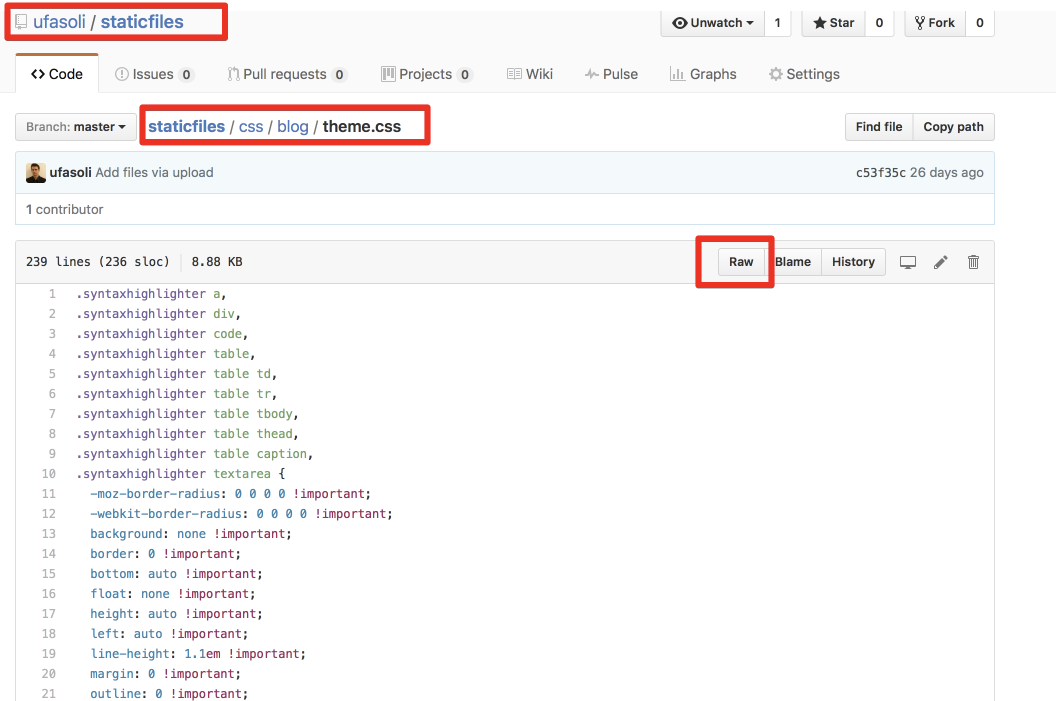
Go back to your GitHub account and open the repository then navigate to a file you want to serve, then click on the "raw" button:

After clicking on the raw button you should be redirected to a "raw" page

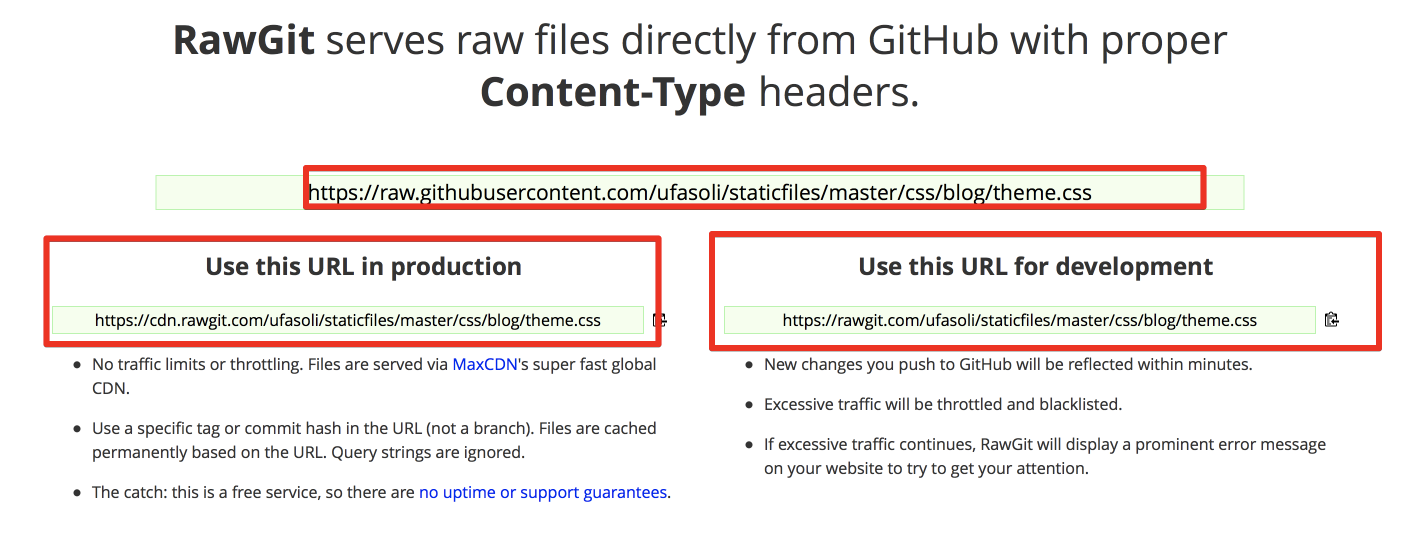
Copy the url in the browser (it should start with raw.githubusercontent.com) and head up to http://rawgit.com paste the url in the main input

Below you get 2 CDN urls that you can use either for production or development

5.- Include the files in your website

Repeat step 4 with all the files you want to serve and include them in your website


Finally please also note that as stated in their website that rawgit : is a free service, so there are no uptime or support guarantees.

Preventing bash commands to be displayed in the history or deleting a specific command from history

It's sometimes useful when using the linux command line to prevent things to go into the bash history; for example if you're using curl to download a file while providing your username password.

This can be easily done in linux by configuring the HISTCONTROL variable in either your ~/.bashrc (which I recommend in order to have it permanently in your bash sessions) or by just changing the value for your current session.

Either way either set the variable as follows on your ~/.bashrc or on your current session

HISTCONTROL=ignorespace

If you took the ~/.bashrc approach don't forget to source it to have i

Once this is done commands that you start with a white space will be ignored :

[root@myserver] curl -o strx25.tar.bz2 --user user:password http://www.openss7.org/repos/tarballs/strx25-0.9.2.1.tar.bz2

note the whitespace before the curl command

Removing a specific line from history

Now if you have to remove a specific line from history this is done in 2 steps

Display commands in history :

[root@myserver]history
  832  docker images
  833  docker rmi 0d22948b5794
  834  docker images
  835  docker rmi 1a31905bb4e4
  836  docker build -t dse/docker .
  837  docker images
  838  docker rmi 47a8395f9714
  839  docker build -t dse/docker .
  840  docker images
  841  docker rmi fe7a4702bf61
  842  docker ps
  843  docker ps -a
  844  docker rm e3f7c83390ee
  845  docker rmi fe7a4702bf61
  846  docker build -t dse/docker .
  847  docker images
  848  docker  rmi a386794cb70c

Once you identified the culprit; delete it with the following command (for example here the line 845):

history -d 845

OSX Wi-fi and Ethernet network simultaneously connected and static routing

So recently I had a situation where I had my Ethernet and Wifi connected to 2 different networks in my MAC OS X, and I had a very specific use case for this

I needed to use the Ethernet connection to access 1 specific host (an internal web service), the connection through the ethernet cable allowed this but did not allow internet access, the Wifi connection allowed internet access but will not allow access to the internal web service, so basically what I needed was :

  • Have both connections active
  • Access the internal web service through the Ethernet connection
  • Access all the other hosts through the Wi-fi connection

Just connecting both interfaces does not work I was either getting access to the internet or either access to the internal WebService; if you check this article over at apple OS X network interfaces priority you can see that you can change the priority used by the system to route the requests; so if you change the priority of the Wi-fi to be on top you get internet access but not access to the internal network, and vice-versa

Sure you can make it work this way but it's really painful to have to manually change the interfaces priority to accommodate what you are trying to do at that moment

The solution that I found is to add a static route to that host; this can be easily done in a few steps (you will need for this the IP of the internal host you are trying to access)

  1. Give your Wi-fi interface the highest priority (put it on top), for this you can refer to the apple link cited above
  2. Identify the interface names, for that execute the following command on the terminal netstat -nr (in my case en0 is the ethernet interface whereas the Wi-fi is the en1)
Add a static route for the specific host (10.120.136.57) telling it to use the gateway of the Ethernet interface by running the following command in the terminal
sudo route add -host 10.120.136.57 10.247.131.1

And that should be it, please note that restarting the PC will probably remove the static route from the routing table so you will have to re-add it

Debug Java SSL/HTTPS WebService with man in the middle proxy

In this article I will be showing how to debug WebServices HTTPS/SSL requests by using a Man in the Middle proxy, this can especially be useful when dealing with WebServices errors since all request will go through the proxy we will be able to see all the content that is sent back and forward

There are several proxies out there that support HTTPS/SSL queries but my favorite by far is mitmproxy and this is the one I will be showing in this post.

The installation instructions detailed here for mitmproxy are for MacOSX but can easily be adapted to Linux distributions; please note that a lot of the instructions detailed here apply to Java applications

1. Install mitmproxy

Personally I use home-brew for my package management; so I assume you have it installed (otherwise you'll have to install mitmproxy manually)

Run the following command to install mitmproxy :

brew install mitmproxy

Your output should look something similar to this

==> Installing dependencies for mitmproxy: libpng, freetype, jpeg
==> Installing mitmproxy dependency: libpng
==> Downloading https://homebrew.bintray.com/bottles/libpng-1.6.21.el_capitan.bottle.tar.gz
######################################################################## 100,0%
==> Pouring libpng-1.6.21.el_capitan.bottle.tar.gz
🍺  /usr/local/Cellar/libpng/1.6.21: 25 files, 1.2M
==> Installing mitmproxy dependency: freetype
==> Downloading https://homebrew.bintray.com/bottles/freetype-2.6.3.el_capitan.bottle.tar.gz
######################################################################## 100,0%
==> Pouring freetype-2.6.3.el_capitan.bottle.tar.gz
🍺  /usr/local/Cellar/freetype/2.6.3: 61 files, 2.5M
==> Installing mitmproxy dependency: jpeg
==> Downloading https://homebrew.bintray.com/bottles/jpeg-8d.el_capitan.bottle.2.tar.gz
######################################################################## 100,0%
==> Pouring jpeg-8d.el_capitan.bottle.2.tar.gz
🍺  /usr/local/Cellar/jpeg/8d: 19 files, 713.7K
==> Installing mitmproxy
==> Downloading https://homebrew.bintray.com/bottles/mitmproxy-0.16.el_capitan.bottle.1.tar.gz
######################################################################## 100,0%
==> Pouring mitmproxy-0.16.el_capitan.bottle.1.tar.gz
🍺  /usr/local/Cellar/mitmproxy/0.16: 1,317 files, 19.8M

2. Add the appropriate SSL certificates to the keystore and truststore

Before anything you will need to add at least the 2 following certificates to your truststore and keystore :

  • The SSL certificate of the site your invoking through your web service
  • The mitmproxy certificate

Please note that I assume you already have a truststore and keystore already configured on your environment

Add the website certificate

   keytool -import -file mywebsite.com -alias mtimproxy -keystore truststore
   keytool -import -file mywebsite.com -alias mtimproxy -keystore keystore

When prompted provide the appropriate password

The mitmproxy certificate can be found under ~/.mitmproxy/ (if the folder does not exist yet it might be necessary to run once the mitmproxy so it will be created)

   keytool -import -file ~/.mitmproxy/mitmproxy-ca-cert.pem -alias mtimproxy -keystore truststore
   keytool -import -file ~/.mitmproxy/mitmproxy-ca-cert.pem -alias mtimproxy -keystore keystore

3. Start mitmproxy

Here I'm starting the proxy and making it listen on port 8080

   mitmproxy --app-port 8080

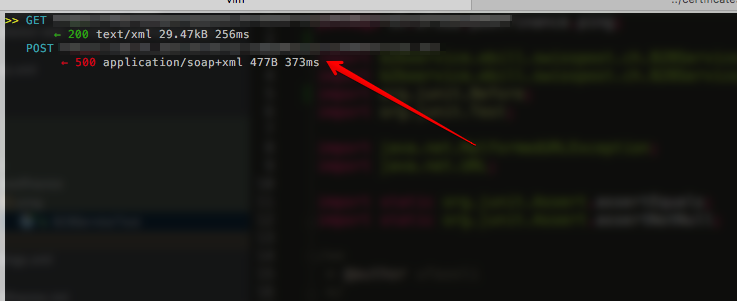
Once the command executed you should see the console open on your terminal and you will start seeing the request going through the proxy

4. Configure Java proxy and keystore / truststore paths

        System.setProperty("javax.net.ssl.trustStore", "./truststore");
        System.setProperty("javax.net.ssl.trustStorePassword", "password");
        System.setProperty("javax.net.ssl.keystore", "./keystore");
        System.setProperty("javax.net.ssl.keyStorePassword", "password");
        System.getProperties().put("http.proxyHost", "localhost");
        System.getProperties().put("http.proxyPort", "8080");
        System.getProperties().put("https.proxyHost", "localhost");
        System.getProperties().put("https.proxyPort", "8080");

5. Check mitmproxy output

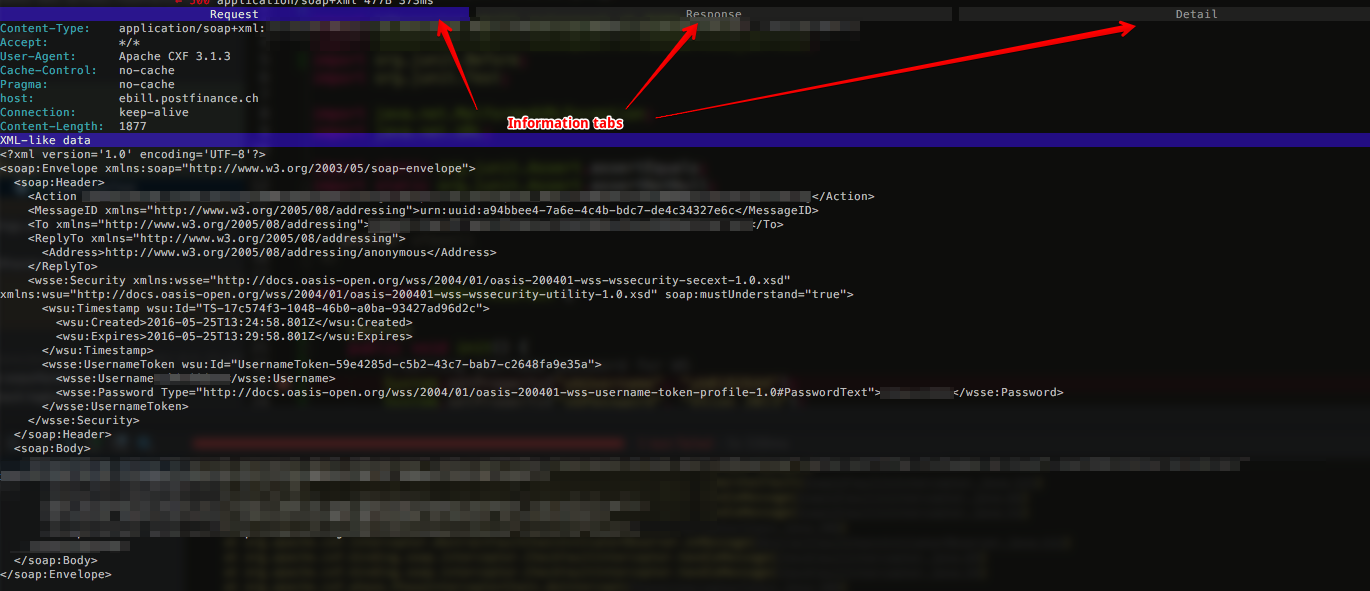
Once the request start going through the proxy you should be able to see them on the console and click on the ones you would like more detail

As you can see from the screenshots you have multiple tabs containing a lot of info

Linux change timezone and force ntpd synchronization

This short article shows how to change the timezone of the Linux distribution as well as forcing the synchronisation of date/time with the ntpd servers

This applies specifically applies to CentOS so some changes might be possible depending on the distribution
1.Change timezone
cp /etc/localtime /root/old.timezone
rm /etc/localtime
ln –s /usr/share/zoneinfo/Europe/Zurich /etc/localtime
2.Add ntpd servers to you configuration file (optional)

Edit (or create) the /etc/ntpd.conf and add the appropriate ntpd servers :

server xxx.xxx.xxx.xxx
note: xxx.xxx.xxx.xxx is the ip or domain name of the server
3.Stop the ntpd daemon

/etc/init.d/ntpd stop

4.Force the date update

Force the update of the date with the new timezone and eventually the ntpd servers


ntpdate xxx.xxx.xxx.xxx

5.Stop the ntpd daemon

/etc/init.d/ntpd start

6.Stop the ntpd daemon

date

OSX show used ports or listening applications with their PID

On OSX you can display applications listening on a given port using the lsof the commands described below will show listening application...