Showing posts with label intellij. Show all posts

Intellij change default encoding for properties and message bundle files to utf-8

By default IntelliJ IDEA encodes Properties and Message bundle files using the System's default encoding (e.g. ISO-8859-1)

In my experience this is problematic since most frameworks out there use UTF-8 and most of the time you work in multi-platform environments.

If you are not careful and start writing say your i18n files with the default setting you'll be in hell when you realize that you have to save your files in UTF-8 for your favorite framework all your Properties files will probably become corrupt during the file-encoding conversion process.

This setting can be change either on the project level (this will affect only the current project) or on the IDE level (this will affect all new projects)

To change this setting on the IDE level just follow these easy steps :

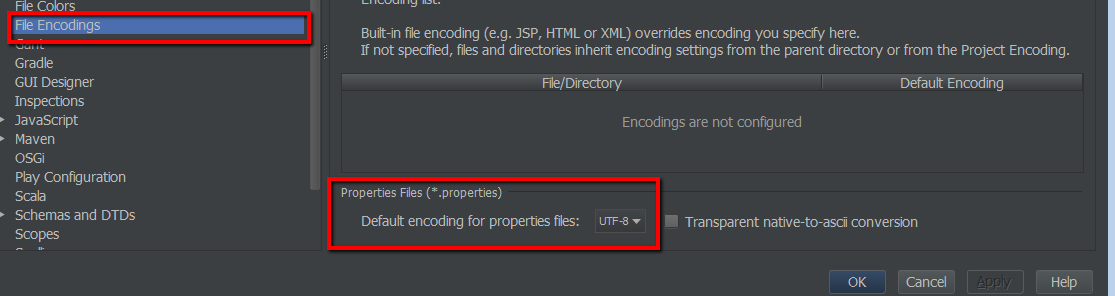
File --> Other Settings --> Default Settings --> File Encodings 
Change the value of Default encoding for properties file to UTF-8 (or another one of your choice)
Now the default encoding for all your Properties and Message bundle files in every new project will be set to the one of your choice

Intellij scala and SBT dependencies - enhancing the development experience

I'm the happy owner of an Intellij Idea licence which I love, and as stated on a recent article I started learning Scala not long ago and I'm having some trouble to feel the SBT love

While playing a bit with Scala/SBT and IntelliJ I realized that the support for it is not great there are a few plugins bundled such as the SBT executor which adds some functionality, but no syntax highlighting for the .sbt files and more importantly no dependency management inside the IDE which for me is a deal breaker (Albeit since I'm pretty new to the Scala world I might be doing it wrong...)

Luckily a few day ago I found this sbt plugin nightly builds which is a new IntelliJ plugin that will add some sugar to your Scala/SBT development such as dependency management.

You will find all the installation instructions in the link above as well as information on the plugin features

Now as stated on the website this plugin is still Alpha so there are still some rough edges and quircks. I for example had the

Error occurred during initialization of VM
Could not reserve enough space for object heap
Error: Could not create the Java Virtual Machine.
Error: A fatal exception has occurred. Program will exit.


Consult IDE log for more details (Help | Show Log)

Which can easily be solved by following the instructions over at Intellij's support website

Debugging a maven failsaife selenium build in intellij

Recently I had to debug a set of Selenium tests using the failsafe plugin and the embedded tomcat7 plugin using Intellij Idea

Usually you can just click on IDE's the debug button and Intellij will take care to launch the build and attach a debugger to the appropriate debug port:

However this time it wasn't working I had 2 issues with my build :

  1. My breakpoints where completely ignored
  2. The maven build just kept waiting without exiting the project even once the integration tests where finished

So I looked into the possible XML configuration tags for the failsafe plugin and thought that the <debugForkedProcess>true</debugForkedProcess> would be my salvation however I was wrong...

So what's happening here ?

By default, maven runs your tests in a separate ("forked") process. So when you set this property to true, the tests will automatically pause and await a remote debugger on port 5005

However this was not going happen since when you click on the IDE's debug button Intellij will execute a java debugging command similar to this :

java -agentlib:jdwp=transport=dt_socket,address=127.0.0.1:63093,suspend=y,server=n -Dmaven.home=C:\dev\bin\maven -Dclassworlds.conf=C:\dev\bin\maven\bin\m2.conf -Dfile.encoding=UTF-8 -classpath "C:\dev\bin\maven\boot\plexus-classworlds-2.4.2.jar;C:\dev\ide\intellij\lib\idea_rt.jar" org.codehaus.classworlds.Launcher --errors --fail-fast --strict-checksums clean verify -P selenium
Connected to the target VM, address: '127.0.0.1:63093', transport: 'socket'

Then the failsafe process will start and pause the tests waiting for a debbuger to attach to the 5005


-------------------------------------------------------
 T E S T S
-------------------------------------------------------
Listening for transport dt_socket at address: 5005

But as mentioned earlier this will not happen, because Intellij is listening on another port

Upon reading the plugin documentation over here I realized that you can change all of these configuration properties. However I kept reading the plugin documentation and found another promising configuration option <forkMode>true</forkMode>

According to the documentation the forkMode is an option to specify the forking mode. Can be "never", "once" or "always". "none" and "pertest" are also accepted for backwards compatibility. "always" forks for each test-class.

Since in our case we need to attach a debugger to a single thread in order to have our debugger to be called when hitting a break-point we will set this option to never

Now hit again the debug button in your IDE and normally Intellij should be summoned when your break-point is reached

Below is a sample maven configuration excerpt with the configuration for the failsafe plugin


...
  
    org.apache.maven.plugins
    maven-failsafe-plugin
    2.9
    
      
         integration-test
            
                integration-test


        verify
        
           verify


        never
     

...

as usual the full code for this application can be found over at my github account

the tests get executed when running the following maven goal :

mvn clean verify -Pselenium

a few tips for the road :

  • Remember to use the suffix IT on your selenium test classes (e.g: MyTestIT.java) otherwise you will have to configure the surefire plugin to ignore them
  • If like me you're running your selenium tests in a self contained mode (i.e : starting the application server, deploying the app, running the tests, stopping the server) remember to configure your server to fork to another process, otherwise the server running process will be started in a blocking mode

Context menu disappears in Intellij idea when right clicking and using eclipse keymap

As a former user of Eclipse I switched to the Eclipse keymap (the mac version can be found here) on Intellij Idea, but there was a bug that was pretty annoying, every-time i right clicked somewhere the context menu will quickly disappear unless I moved the mouse while clicking...

This was actually caused by a bug that was filled sometime ago and the workaround is pretty easy as stated in the bug page just remove the 'button3' mouse shortcut from the "show context menu" action in your IDE preferences

I made the small change to the XML file and filled a pull request with the author, so if it gets accepted it should take care of the bug

In any case you can either download the xml file once the pull request gets accepted or do it yourself from your IDE preferences as explained in the bug page :


Open Settings | Keymap, press Copy button to create an editable copy of the Eclipse keymap, in the copy find "Show Context Menu" action in the Other group, it has multiple shortcuts defined, delete "Button3 Click" from the list of shortcuts, press Apply. Context menu will no longer disappear after right click.

OSX show used ports or listening applications with their PID

On OSX you can display applications listening on a given port using the lsof the commands described below will show listening application...